
Dashboard Overview
A visual tour of the Chelar dashboard, every page and what it does.
The Chelar dashboard at app.chelar.ai is your control center for managing your AI assistant. Here's what each section does.
Overview
The home page shows your assistant's status at a glance: connection status, channel count, active sessions, automations, and 30-day cost estimate.
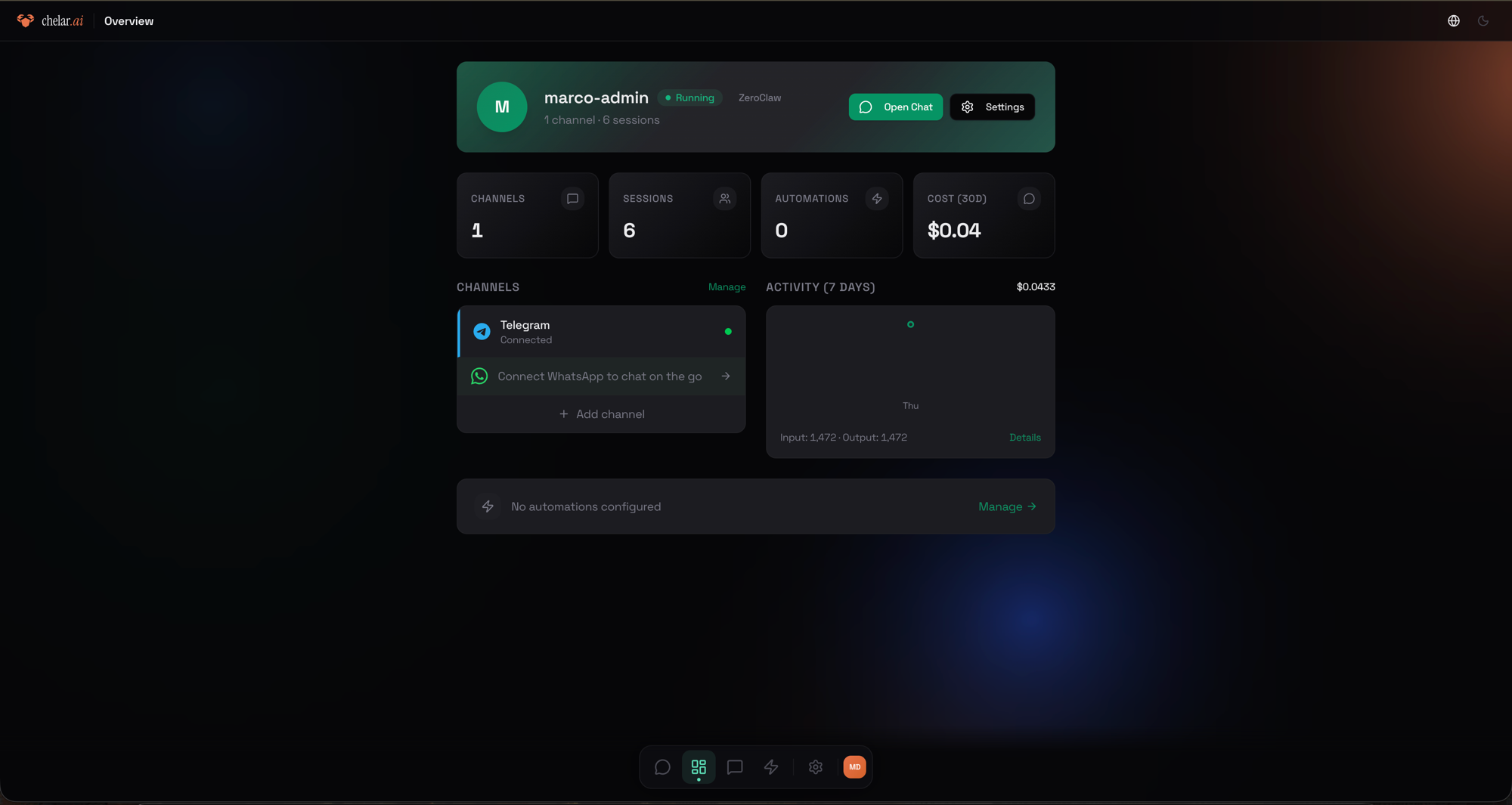
Key elements:
- Status badge, green "Running" means your assistant is active
- Metric cards, channels, sessions, automations, and estimated cost
- Channels section, connected channels with quick "Manage" link
- Activity chart, 7-day token usage with input/output breakdown
- Automations, shows active scheduled tasks or "No automations configured"
Chat
Talk to your assistant directly from the browser. Messages are encrypted in transit.
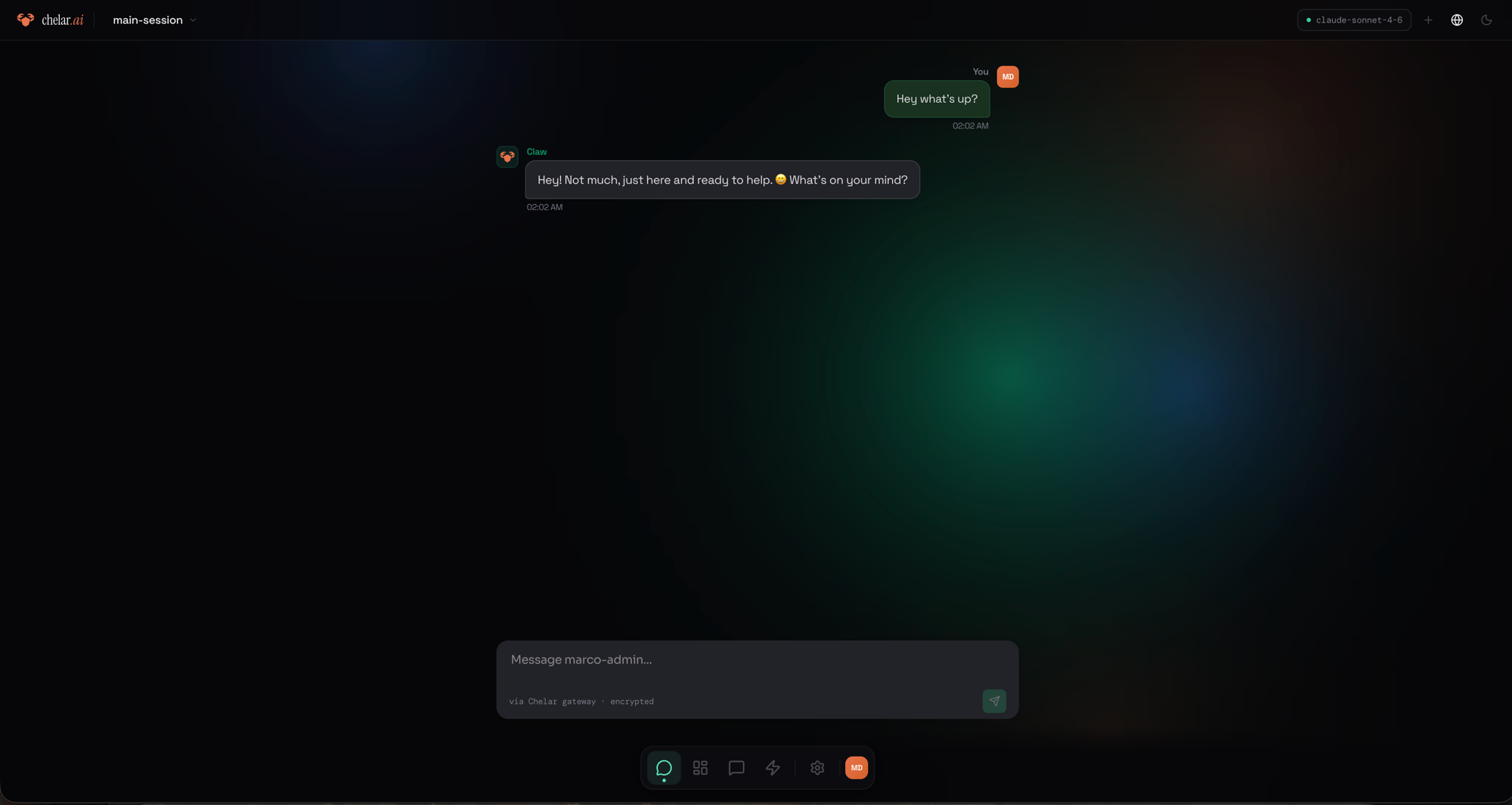
- Session selector, switch between conversation sessions (dropdown at top)
- Model indicator, shows the active AI model
- Message input, type your message and send with the arrow button
Channels
Connect and manage your messaging channels. Currently supported: Telegram (with WhatsApp, Discord, and Slack coming soon).
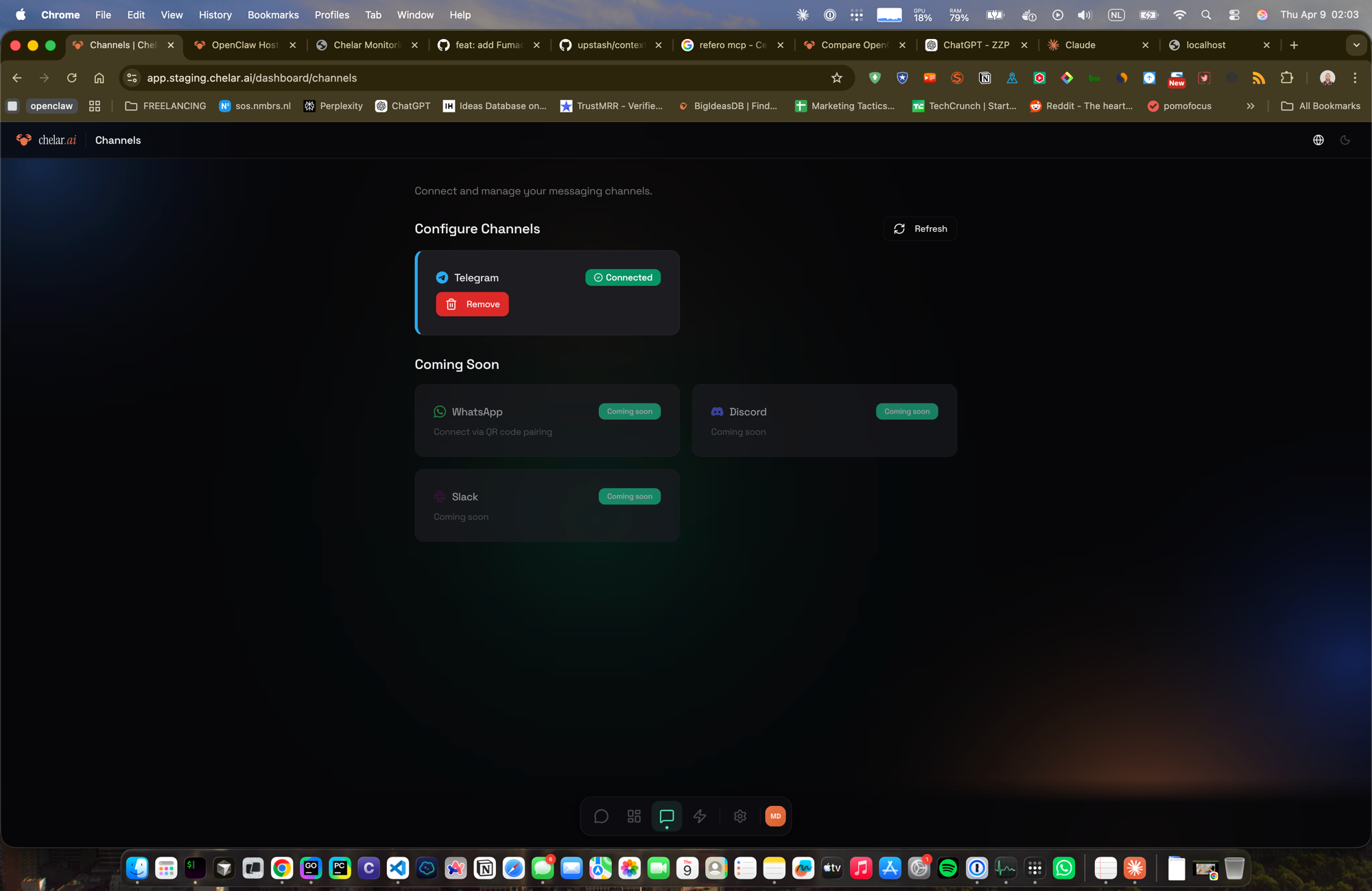
- Connected channels, shows status badge (green "Connected") with a Remove button
- Coming Soon section, future channels displayed with "Coming soon" badges
- Refresh, re-check channel connection status
Automations
Schedule recurring AI tasks with cron expressions. Your assistant executes the prompt on the defined schedule.
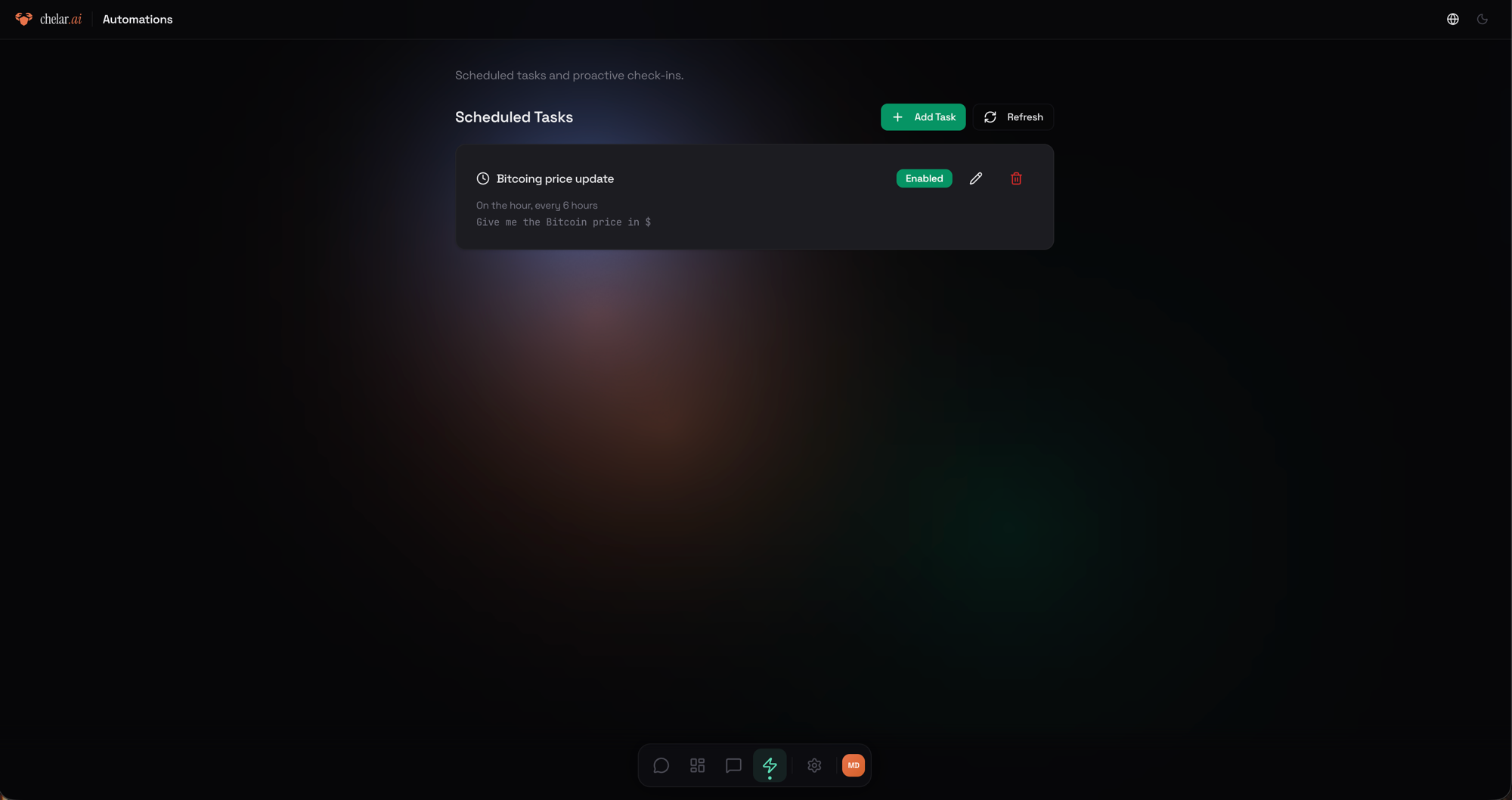
- Scheduled Tasks, list of configured tasks with name, schedule, and status
- Enabled toggle, green badge shows active tasks
- Edit/Delete, manage individual tasks
Creating a Task
Click "+ Add Task" to create a new scheduled task:
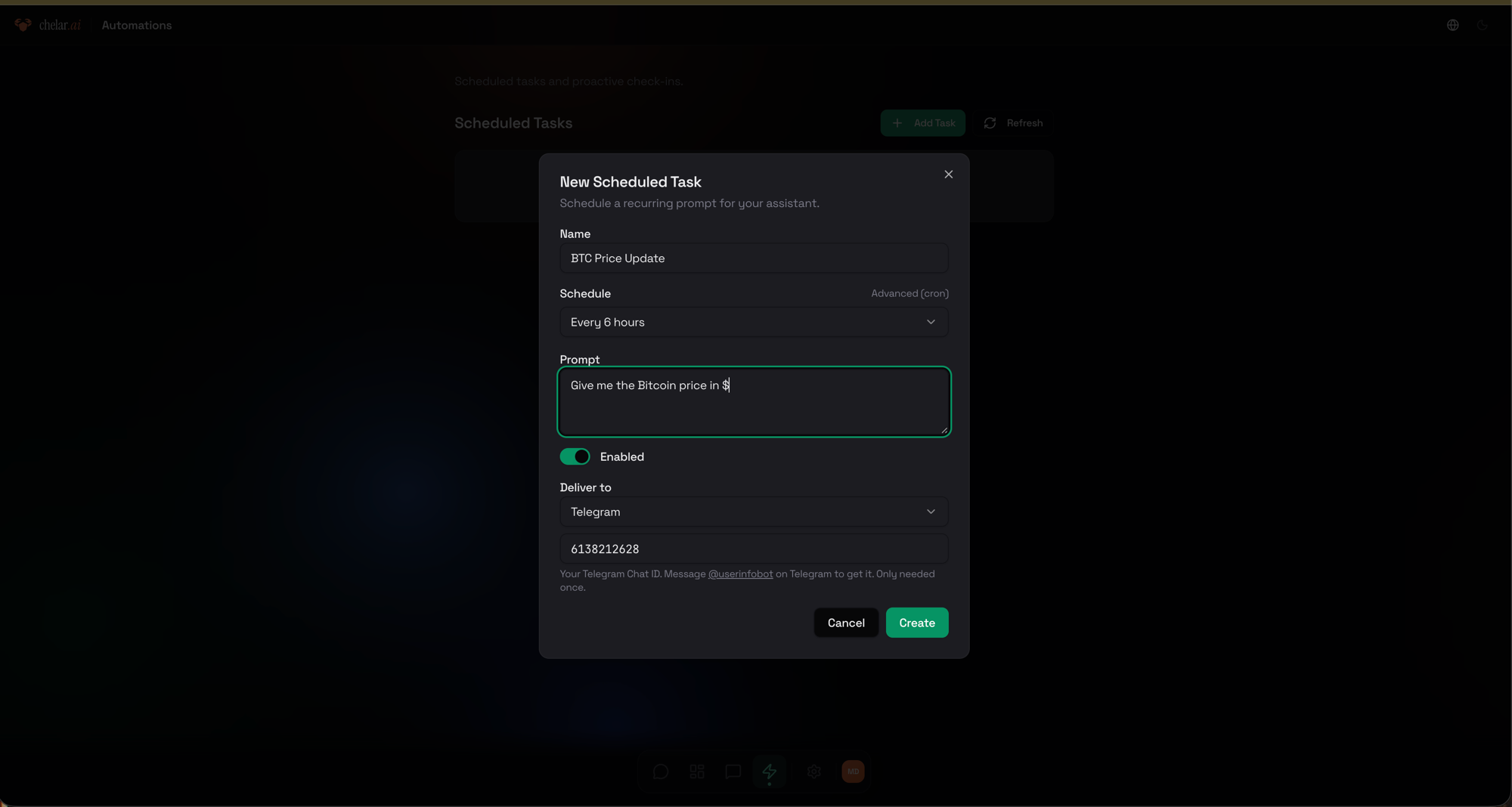
- Name, descriptive label for the task
- Schedule, preset intervals (every 6 hours, daily, etc.) or advanced cron expression
- Prompt, the instruction your assistant will execute on each trigger
- Enabled, toggle on/off without deleting
- Deliver to, choose where results are sent (Telegram channel, or "None" for silent execution)
Editing a Task
Click the pencil icon to modify an existing task:
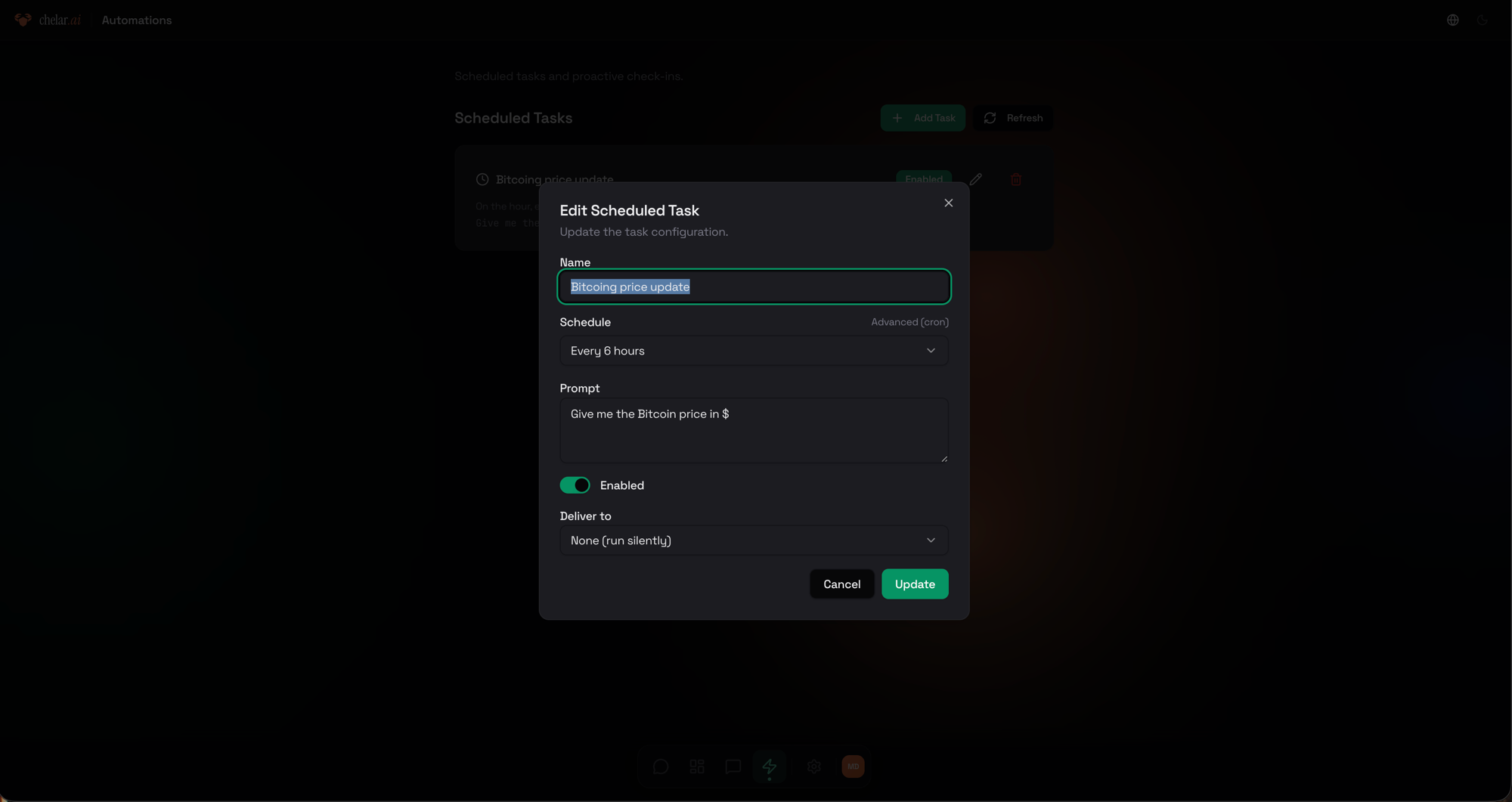
Scheduled tasks require the Pro plan ($19/mo). On the Starter plan, the automations page shows the task list but creation is disabled.
Billing
View your current plan, compare tiers, and manage your subscription via Stripe.
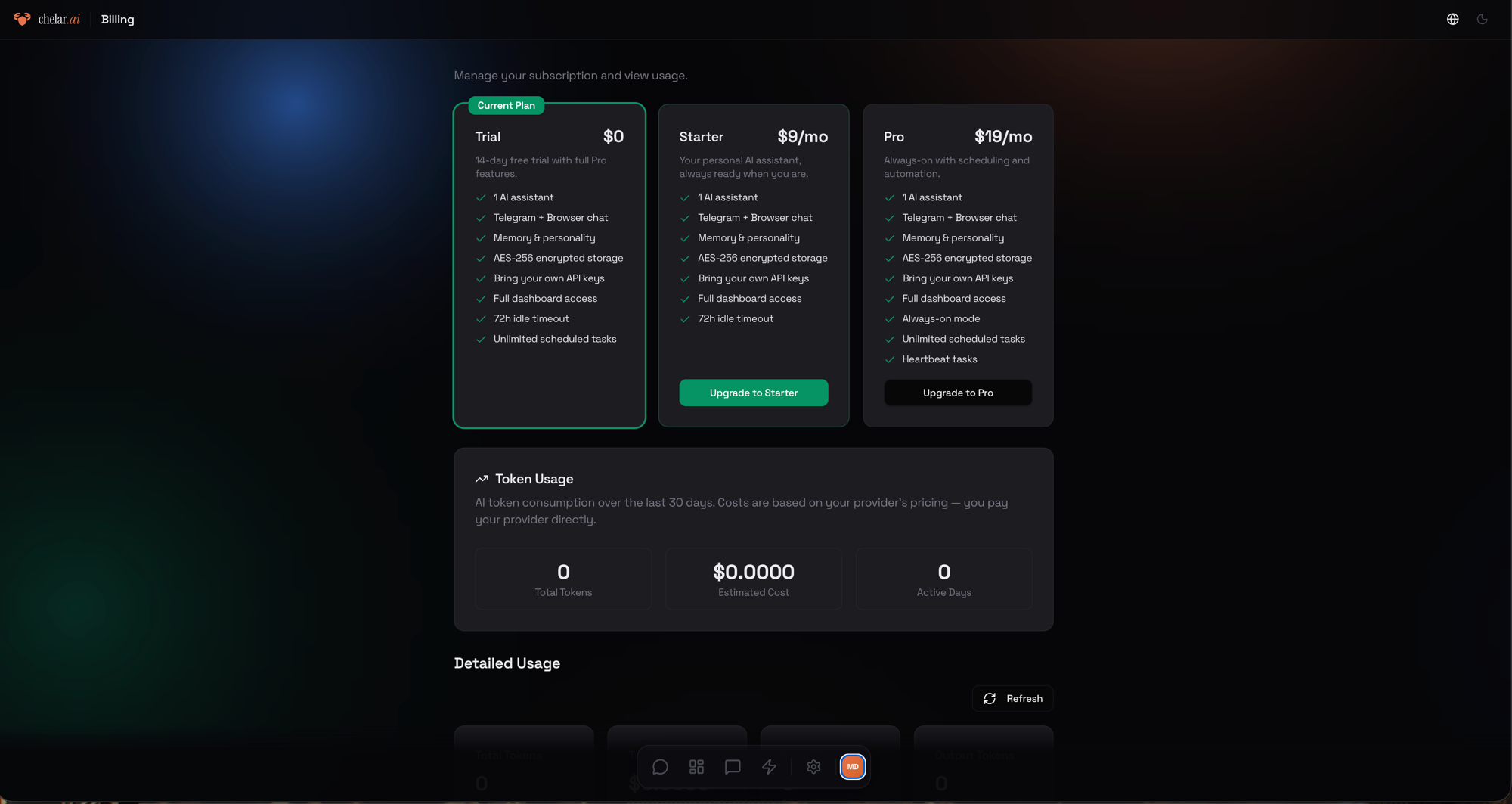
- Plan cards, Trial ($0), Starter ($9/mo), Pro ($19/mo) with feature comparison
- Current Plan badge, highlights your active plan
- Upgrade buttons, redirect to Stripe Checkout
- Token Usage, 30-day AI token consumption with estimated cost
- Detailed Usage, per-day breakdown chart
Settings
Configure your assistant's display name, chat memory, AI provider keys, and more.
General Tab
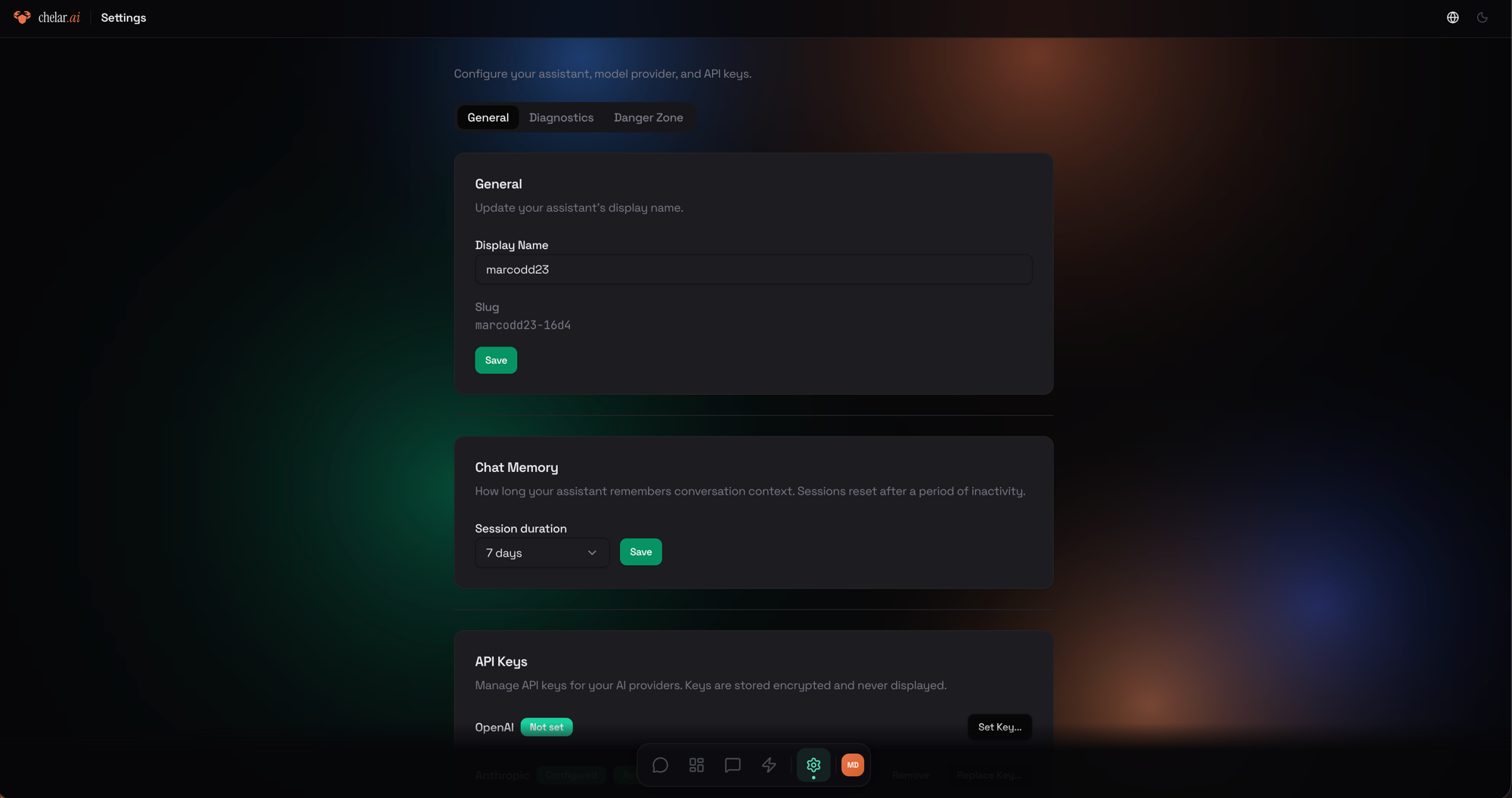
- Display Name, your assistant's name (shown in the dashboard)
- Chat Memory, session duration before conversation context resets (default: 7 days)
- API Keys, set encrypted keys for OpenAI, Anthropic, and Google. Keys are stored encrypted and never displayed after you save them.
Diagnostics Tab
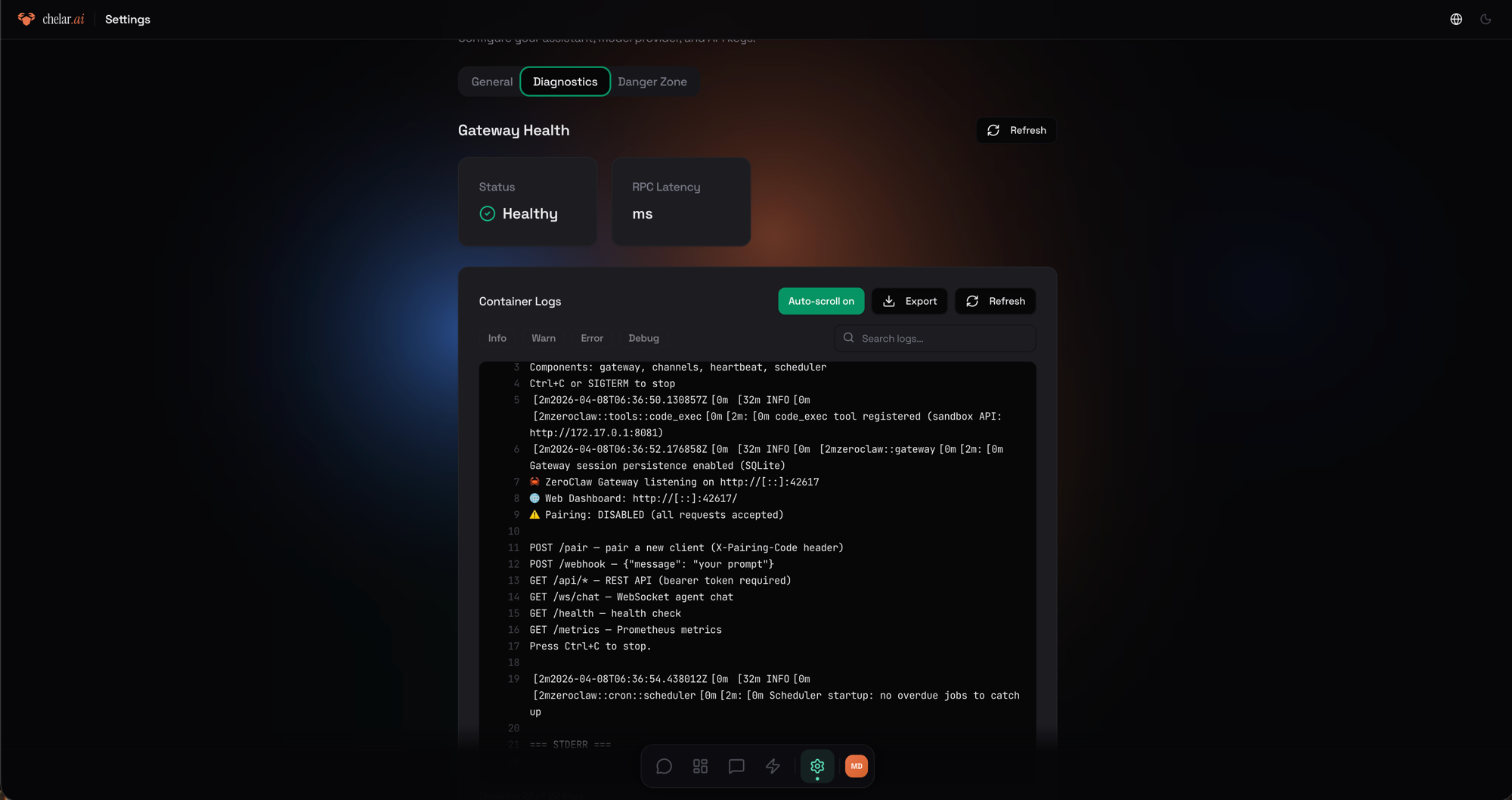
- Health Status, your assistant's current status and response time
- Logs, live log stream with level filters (Info, Warn, Error, Debug), search, auto-scroll, and export
Danger Zone Tab
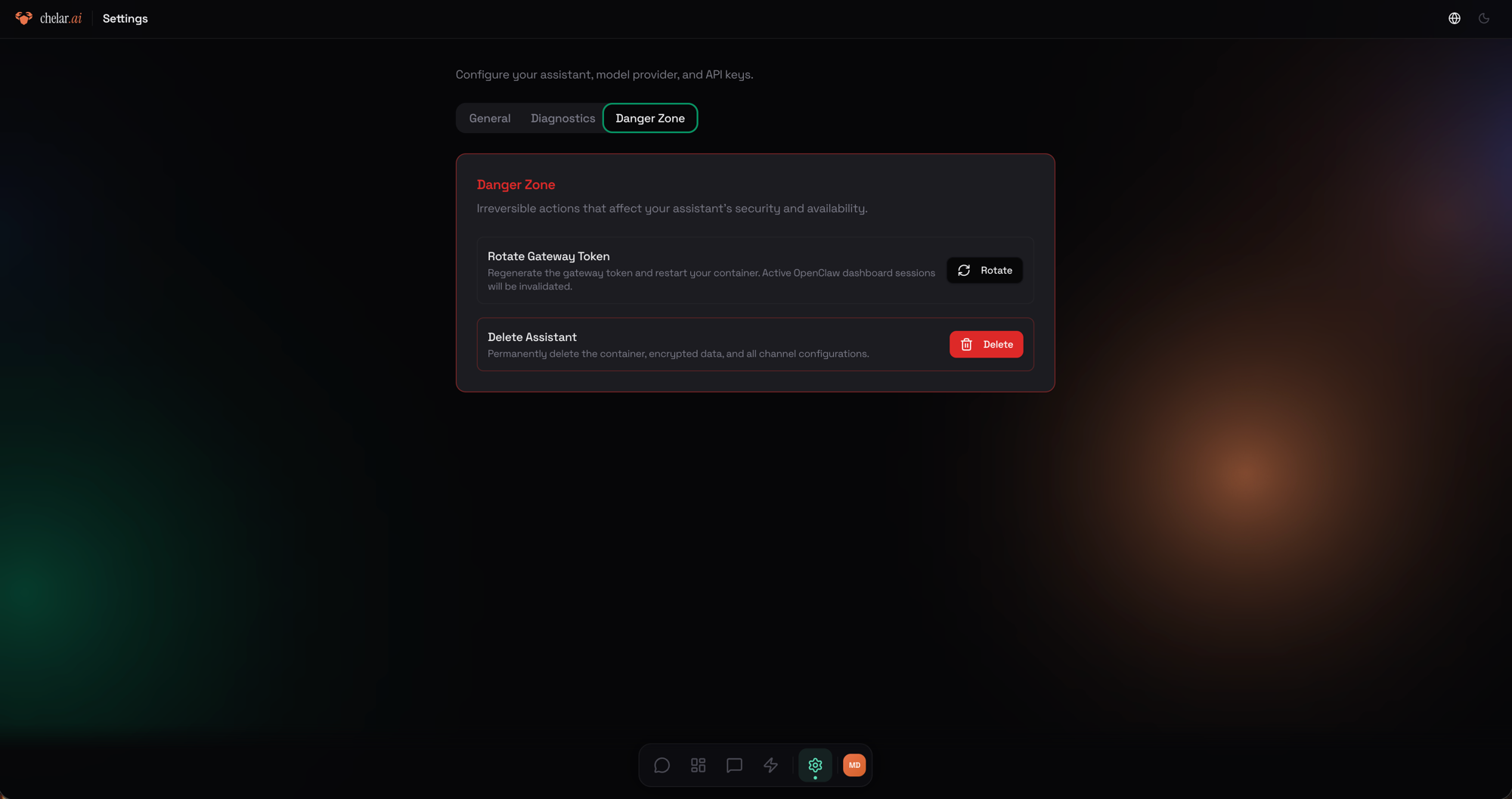
- Restart Assistant, restart your assistant (useful if something seems stuck)
- Delete Assistant, permanently remove your assistant and all associated data
Navigation
The bottom dock provides quick access to all sections:
| Icon | Page | Description |
|---|---|---|
| Chat bubble | Chat | Talk to your assistant |
| Grid | Overview | Dashboard home |
| Monitor | Channels | Manage messaging channels |
| Lightning | Automations | Scheduled tasks |
| Gear | Settings | Configuration and diagnostics |
| Avatar | Account | Profile and account management |